

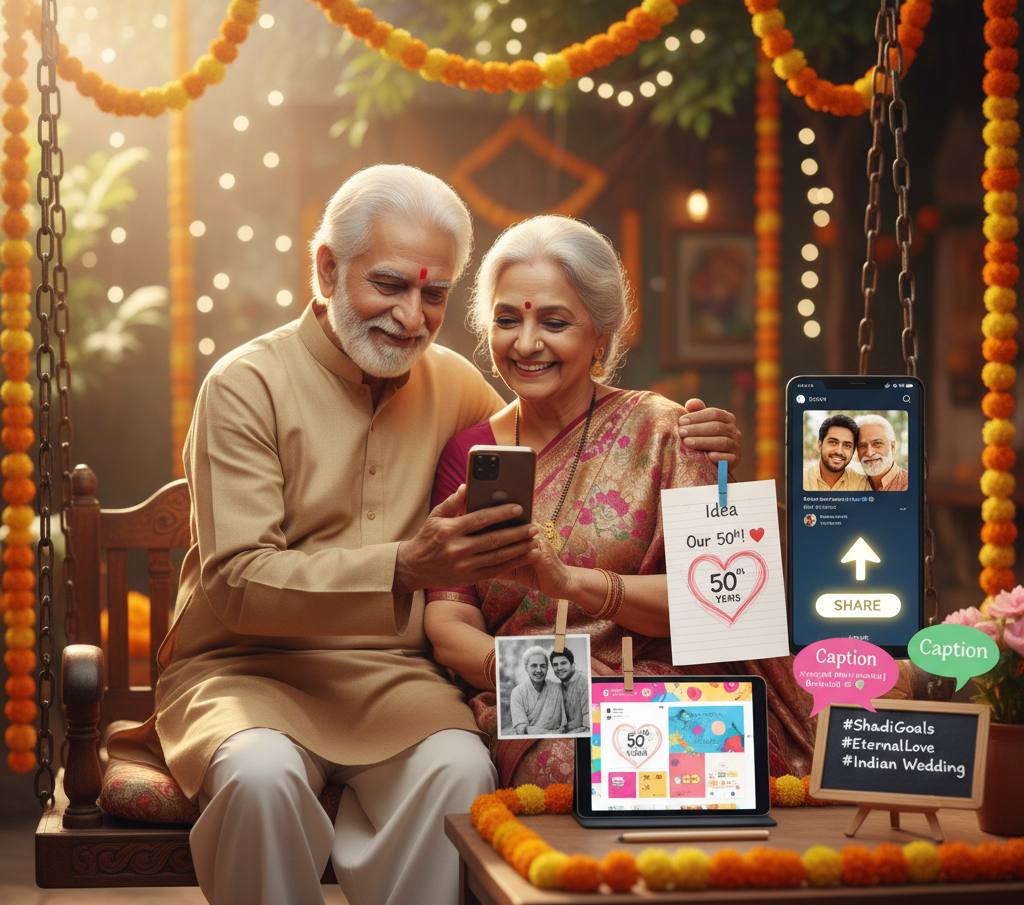
What makes a social media post go viral? How do I design content that actually connects with people? What’s the best time to post? Do I need fancy tools, or can I do it all from my phone? In a world where attention spans are short and competition is fierce, these are the questions everyone—from small business owners to everyday creators—is asking in 2025. Whether you’re overwhelmed by trends, confused by algorithms, or simply wondering how to turn your idea into a scroll-stopping post, you’re not alone. From Idea to Impact: Your Ultimate Guide to Creating Amazing Social Media Posts in 2025 is here to help.
Ever scroll through Instagram or Facebook and wonder, “How do they make those beautiful, eye-catching posts?” You might think you need to be a graphic design wizard or hire a professional. Good news: you don’t!
In today’s world, a great social media post can help you share a memory, promote your small business, or simply express your creativity. This guide will walk you through the entire process—from brainstorming to posting—using simple, free tools. Let’s turn your ideas into share-worthy content, step-by-step!
Keywords for This Guide
- How to create social media posts
- Social media design for beginners
- Free social media post maker
- Canva tutorial for beginners
- Personalized social media graphics
- How to post on Instagram and Facebook
- Social media content creation
Step 1: The Spark – What’s Your Message?
Before you touch any design tool, ask yourself one simple question: What do I want to say?
Your post needs a purpose. Are you:
- Sharing a photo from your recent trip?
- Announcing a special offer for your home bakery?
- Wishing someone a happy birthday?
- Sharing an inspirational quote?
Jot down the core message. This is your foundation. For example, your idea might be: “A post about my weekend trek to the hills.”
Step 2: Your Magic Wand – Choose a Design Tool
You don’t need expensive software. There are fantastic, user-friendly platforms that make design feel like a game. Our top recommendation for beginners is Canva.
- Why Canva? It’s a free-to-use online design tool with thousands of ready-made templates. It’s available on both computers (website) and phones (app). Other great options include Adobe Express.
Action: Go to Canva.com or download the Canva app and sign up for a free account.
Step 3: The Creation Station – Designing Your Post

This is where the fun begins! We’ll use Canva as our example.
- Find the Right Size: On the Canva homepage, you’ll see options like “Instagram Post,” “Facebook Post,” etc. Click on the one you need. This automatically sets up the perfect dimensions, so you don’t have to worry about your image getting cropped weirdly.
- Pick a Template: On the left side, you’ll see a huge library of templates. Search for something related to your message. For our example, you could search for “travel,” “hiking,” or “nature.” Click on a design you like to get started.
A visual representation of the Canva workspace
- Personalize It!
- Change the Text: Double-click on the text in the template to write your own message. You can change the font, size, and color from the toolbar at the top.
- Add Your Own Photos: Go to the “Uploads” tab on the left menu, click “Upload files,” and choose the best photo from your trek. Drag and drop your photo from the uploads panel right onto the existing picture in the template. It will snap into place!
- Customize Colors: Don’t like the template’s colors? Click on any element (like the background or a shape), and a color box will appear on the top-left toolbar. Click it to choose a new color.
Step 4: The Grand Finale – Download Your Masterpiece
Once you are happy with your design, it’s time to save it.
- Click the “Share” button in the top-right corner.
- Select “Download”.
- Choose the file type. For images, PNG is best for high quality, and JPG is good for smaller file sizes. If you made a video or animated post, choose MP4.
- Click the “Download” button. The file will save to your computer or phone.🚀 Ready to Share? Once downloaded, your creation is ready for the world!
Step 5: The Perfect Words – Writing Your Caption
Your beautiful image needs a great caption to go with it.
- Tell a Story: Briefly describe your experience. For our example: “Had the most incredible weekend trekking through the misty hills! Every step was worth this view.”
- Ask a Question: Encourage people to comment. “What’s your favorite hiking spot? Let me know below!” This is called a Call-to-Action (CTA).
- Use Hashtags: Hashtags help new people find your post. Add a few relevant ones. For example:
#HikingAdventures #NatureLover #WeekendGetaway #IncredibleIndia. Aim for a mix of popular and niche hashtags. - Tag People or Places: If you were with friends, tag them! If you were at a specific location, add the location tag.
Step 6: Go Live! – Posting on Social Media

You’re ready to share!
- On your Phone: Open the Instagram or Facebook app. Click the ‘+’ icon to create a new post. Select your downloaded image from your gallery, paste your caption, add the location, tag friends, and hit “Post”!
- On your Computer: Go to the Facebook or Instagram website. You can directly upload and post from there, too.
Pro-Tip: You can post the same design on different platforms! However, you might want to slightly tweak the caption to fit the audience (e.g., a more professional tone for LinkedIn).
✅ Do’s and ❌ Don’ts of Social Media Posting
| Do’s | Don’ts |
| ✅ Be Authentic: Let your personality shine. | ❌ Don’t Steal: Never use someone else’s photo without permission. |
| ✅ Use High-Quality Photos: Avoid blurry images. | ❌ Don’t Overdo Hashtags: Stick to 5-15 relevant ones. |
| ✅ Proofread Your Caption: Check for typos. | ❌ Don’t Be Inconsistent: Try to post regularly, even if it’s just once a week. |
| ✅ Engage with Comments: Reply to people who comment! | ❌ Don’t Forget Your Goal: Always remember the message you want to convey. |
Export to Sheets
Limitations to Keep in Mind
- Free vs. Pro: Free tools like Canva are amazing, but some premium templates and photos (marked with a crown icon) require a paid subscription. The free version is more than enough to get started.
- Platform Nuances: What works on Instagram (highly visual) might not work as well on X (formerly Twitter), which is more text-focused. Always consider the platform.
- Video Limits: Platforms have limits on video length (e.g., Instagram Reels are up to 90 seconds). Keep your video posts short and engaging.🚨 Important: Always double-check platform guidelines for best results!
Frequently Asked Questions (FAQs)
Q1: What’s the best size for a social media post? A: You don’t need to memorize sizes! Tools like Canva have pre-sized templates like “Instagram Post (Square)” or “Facebook Cover” that are perfectly optimized for you.
Q2: Can I create a post entirely on my phone? A: Absolutely! The Canva mobile app is very powerful and allows you to do everything from designing to downloading right on your phone, making it super convenient to post on the go.
Q3: How do I find good photos if I don’t have any of my own? A: Canva has a massive built-in library of free stock photos. Just go to the “Elements” tab and search for what you need. Other great free stock photo websites are Pexels and Unsplash.
Q4: How often should I post? A: Consistency is more important than frequency. It’s better to post one great post per week than five rushed ones. Find a rhythm that works for you.
Conclusion
You now have the complete roadmap to design, create, and publish beautiful, personalized social media posts. The key is to start simple, have fun with the process, and not be afraid to experiment. Your voice is unique, and now you have the tools to share it visually with the world.
Go ahead, open up Canva, and create something amazing today!
